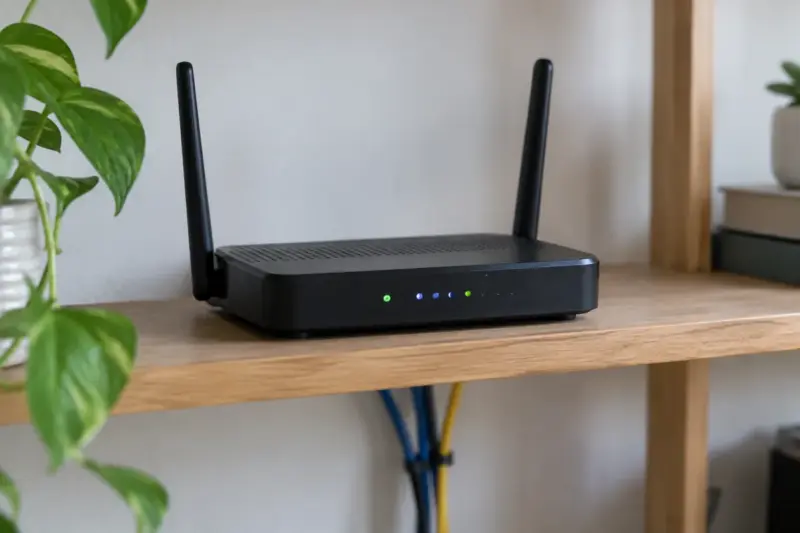
Router boxes advertise a device count — 100 devices, 200 devices — and that number is close to meaningless for a smart home. What decides whether your lights, plugs and cameras behave is which band they can use, whether the router will let them use it, and whether it can keep them away from everything else.
Three things to check, in order of how much trouble they cause.
Table of Contents
1. 2.4 GHz is not optional, and it never will be
A large share of smart home hardware is 2.4 GHz only. Not because manufacturers are lazy, but because it is the right choice for the device: 2.4 GHz travels further, passes through walls better, and the radios cost less and draw less power. A smart plug does not need 5 GHz throughput to report that it is on.
So any router for a house full of smart devices has to serve 2.4 GHz properly — and, more importantly, has to let you get at it.
2. Band steering is why setup fails
This is the single most common reason a device refuses to pair, and almost nobody connects the two facts.
Modern routers advertise one network name and decide for each client whether to put it on 2.4 GHz or 5 GHz. Manufacturers call it band steering, Smart Connect, or similar. NETGEAR's documentation is explicit that band steering requires the connecting device to support both the 2.4 GHz and 5 GHz bands — which a 2.4 GHz-only smart plug does not.
Now consider what setup actually involves. Your phone is on the network, probably on 5 GHz because it is capable and close to the router. The new device needs 2.4 GHz. During pairing the app has to talk to the device directly, and the two are on different radios. The app times out, you try again, and the device never joins.
There are three ways out, and manufacturers recommend all three depending on the hardware:
- Turn off Smart Connect / band steering, permanently or just for setup. The router then broadcasts two names, and you choose.
- Create a separate 2.4 GHz SSID and keep it. This is what most people with a lot of smart devices end up doing, and it is worth doing from the start rather than after a frustrating evening.
- Force the phone onto 2.4 GHz for the duration of setup — sometimes as crude as walking away from the router until it drops down a band.
What to look for when buying: whether the router lets you split the bands into separate SSIDs at all. Some mesh systems do not expose the option, and that is a real limitation for a smart home rather than a detail.
3. A guest network that actually isolates
The most valuable security feature in a home router is the ability to put smart devices somewhere they cannot reach the rest of the house. CISA recommends connecting smart home and IoT devices to the guest Wi-Fi when internet access is all they need.
The feature to check is client isolation — sometimes AP isolation — on the guest network. Without it, "guest network" is just a second password on the same flat network and the separation is cosmetic. With it, a compromised camera can reach the internet and nothing else.
Two things to verify on a router you are considering:
- Does the guest network support 2.4 GHz? A guest network that is 5 GHz only is useless for exactly the devices you want on it.
- Is client isolation available, and is it on? On some routers it is off by default.
The reasoning behind this, and the other settings worth changing once the router is in place, are in our guide to securing a smart home.
What "supports 200 devices" means
Very little. The figure normally reflects the DHCP address pool or a theoretical association limit, not the number of devices the router can serve without slowing down. Real limits show up long before that number, and they show up as airtime rather than addresses: 2.4 GHz is a crowded, low-capacity band shared with microwaves, Bluetooth and every neighbour, and forty chatty devices on it behave worse than forty devices on 5 GHz.
If a manufacturer publishes a figure, treat it as a ceiling nobody tested rather than a promise.
Thread on board, if you are heading that way
Some routers and mesh systems include a Thread border router, which is what joins Thread devices to your normal network. If you are buying Matter-over-Thread sensors and locks, having that role in the router removes the need for a separate hub.
Worth being precise, because the marketing is not: Matter is a common language, Thread is a network, and a device that says "Matter" on the box may run over Wi-Fi and need no border router at all. Our guide to choosing a smart lighting system covers which is which and when it matters.
What matters less than the box suggests
- Wi-Fi 6E and Wi-Fi 7. Real improvements, and almost entirely irrelevant to smart home devices, which are on 2.4 GHz and sending a few bytes an hour. Buy them for laptops and headsets, not for plugs.
- Headline throughput. The number on the front adds together bands that no single device uses at once.
- Mesh, for a small home. Mesh solves coverage. If coverage is fine, extra nodes add complexity and another place for band steering to misbehave.
The short version
- Can it broadcast a separate 2.4 GHz SSID? If not, expect pairing trouble for as long as you own it.
- Does the guest network cover 2.4 GHz and offer client isolation?
- Does it support WPA3 Personal, while still allowing WPA2 AES for older devices?
- Can it update its own firmware?
- Do you need a Thread border router, and does this one include it?
Everything else on the box is for the laptops.
Sources
The requirement that band steering clients support both bands is as documented by NETGEAR for Smart Connect and by TP-Link for its equivalent feature; both describe separating the bands as the remedy for devices that cannot use 5 GHz. The recommendation to place IoT devices on the guest network is from CISA's Project Upskill, Module 5. The characterisation of advertised device counts, and of 2.4 GHz congestion, is general network behaviour rather than a manufacturer claim.
Sources last checked 14 September 2026.
If you'd like to read other articles similar to What to Look for in a Router for a Smart Home You can visit the category Smart Security.
You may also enjoy reading